
Debugging
When a program does something you don’t expect, the debugger lets you watch it work: stop it at a line, see what its variables hold there, and go on a line at a time.
It’s part of Tessel itself. There’s nothing else to install, and it works the same on macOS and Windows.
You can use it in three places: the Tessel IDE, VS Code, and a terminal.
What a debugger does
Section titled “What a debugger does”- A breakpoint is a line you mark. The program stops just before it runs that line.
- While the program is stopped, you can see the calls that led there (which function called which) and the variables of each of them.
- Then you tell it how to go on: continue to the next breakpoint, step over (run this line and stop at the next), step in (stop inside a function this line calls) or step out (go on until this function returns).
A runtime error stops the program too, at the line where it happened, with its variables still there to look at. That’s often the fastest way to find out why an index was out of range.
In the Tessel IDE
Section titled “In the Tessel IDE”- Click in the margin beside a line, left of its number. A red dot marks the breakpoint. Click it again to remove it.
- Press Debug in the toolbar (Shift+Cmd+R; Shift+Ctrl+R on Windows).
The program is built and started. When it reaches the line, the line turns yellow and the Debug tab at the bottom opens:
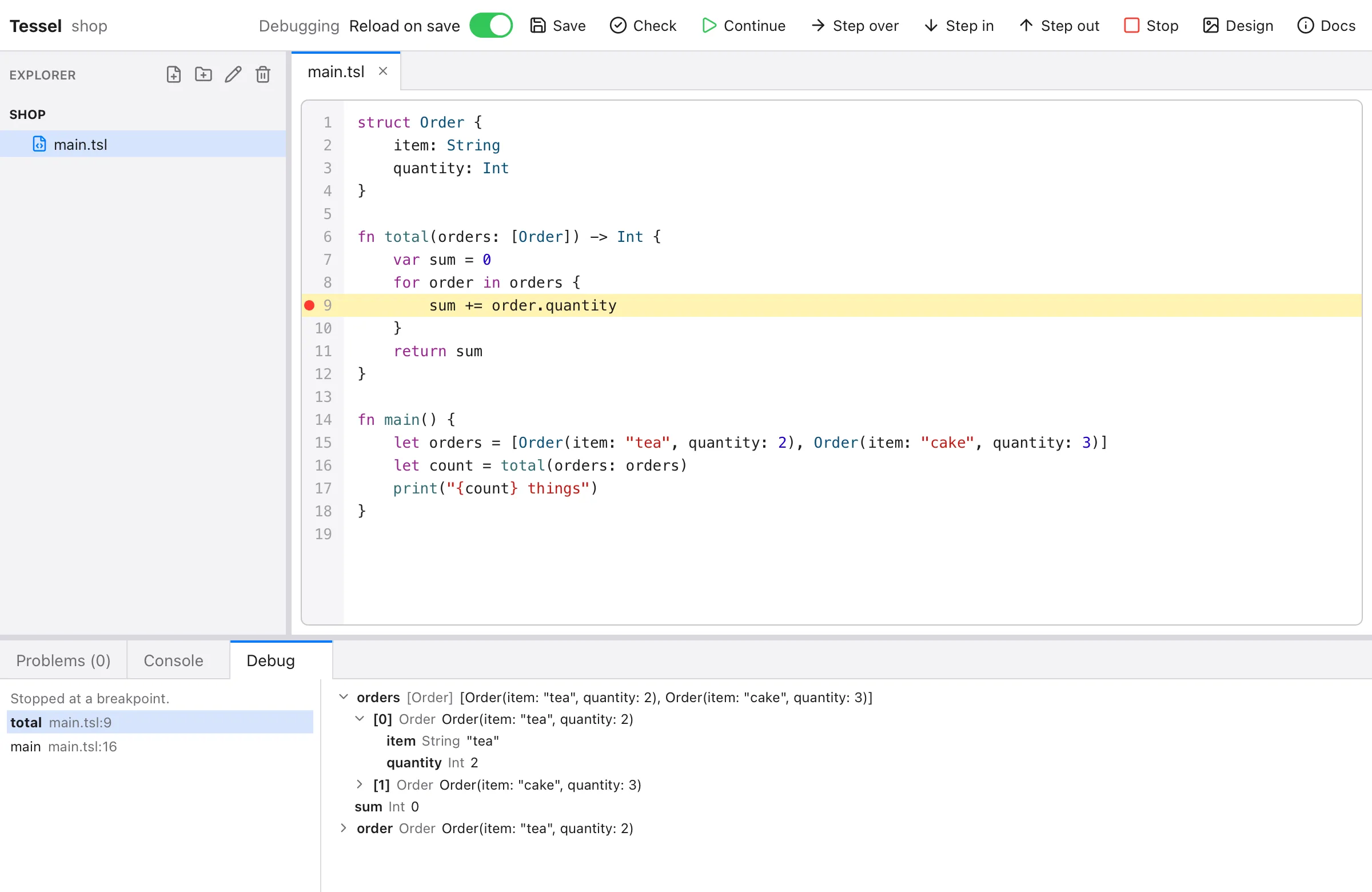
- On the left, the calls that led here, innermost first. Click one to see its line and its variables.
- On the right, the variables. One with an arrow has parts: click it to see a list’s items, a struct’s fields, a dictionary’s entries or an enum case’s values. Click again to fold it.
While a program is being debugged, the toolbar has the debugger’s buttons:
| Button | Shortcut | What it does |
|---|---|---|
| Continue | Lets the program go on, to the next breakpoint. | |
| Pause | In Continue’s place while the program runs: stops it at the next line it runs. An app that’s waiting for you stops when you next do something in it. | |
| Step over | Cmd+’ | Runs this line and stops at the next one. |
| Step in | Cmd+; | Like Step over, but stops inside a function this line calls. |
| Step out | Shift+Cmd+; | Goes on until this function returns. |
| Stop | Shift+Cmd+R | Ends the program. |
You can add and remove breakpoints while the program runs. What it prints goes to the Console tab, as when it’s run.
In VS Code
Section titled “In VS Code”With the Tessel extension (0.4.0 or later):
- Click in the margin beside a line to set a breakpoint.
- Press F5, or the bug button in the editor’s title bar.
The program of the file you’re editing is built and started. VS Code’s own debugging views show the rest: Variables, Call Stack, the step buttons, and the Debug Console with what the program prints. Hovering over a variable in the code shows its value.
No launch.json is needed. To debug a particular program whatever file is
open, add one:
{ "version": "0.2.0", "configurations": [ { "type": "tessel", "request": "launch", "name": "Debug the app", "program": "${workspaceFolder}/app" } ]}program is a .tsl file or a folder of them, as for tessel run.
In a terminal
Section titled “In a terminal”tessel debug <path>builds the program and waits for commands. Say where to stop, then run:
$ tessel debug shop.tslThe program is ready. `break <line>` says where to stop, `run` starts it, `help` lists the rest.(tessel) break 16will stop at shop.tsl:16(tessel) runat a breakpoint: shop.tsl:16 in total 16 | sum += item.price(tessel) localsitems: [Item] = [Item(name: "tea", price: 2.5), Item(name: "cake", price: 4.0)]sum: Float = 0.0item: Item = Item(name: "tea", price: 2.5)(tessel) print items[1].nameitems[1].name: String = "cake"(tessel) where* 0: total at shop.tsl:16 1: main at shop.tsl:24(tessel) nextat a breakpoint: shop.tsl:16 in total 16 | sum += item.price(tessel) continuetotal 6.5the program ended| Command | Short | What it does |
|---|---|---|
break 12 | b | Stops at line 12. In another file of the program: break other.tsl:12. |
delete 12 | d | Doesn’t stop there any more. delete all removes every breakpoint. |
breakpoints | Lists the breakpoints. | |
run | r | Starts the program. |
continue | c | Lets it go on, to the next breakpoint. |
next | n | Runs this line, and stops at the next one. |
step | s | Like next, but stops inside a function this line calls. |
out | o | Goes on until this function returns. |
where | w | The calls that led here, innermost first. |
up, down, frame 2 | Looks at another of those calls: locals and print are about it. | |
locals | l | The variables here. |
print order.items[0] | p | One variable, or a part of one, with its own parts below it. |
quit | q | Ends the program and the debugger. |
print takes a variable and what’s in it: .field, [3] for a list’s
item, ["key"] for a dictionary’s entry, .0 for a tuple’s. It doesn’t
work out expressions like a + b.
What you see
Section titled “What you see”Values are shown as you’d write them in code:
| Value | Shown as |
|---|---|
| A struct | Item(name: "tea", price: 2.5) |
| A list, a set | [1, 2, 3] |
| A dictionary | ["ann": 31, "bo": 27] |
| An optional | its value, or nil |
| An enum case | .circle(radius: 1.5) |
| A tuple | (1, "one") |
| A function or a block | function |
Long values are cut short with …; open them up (or print a part) to see
the rest.
In a method, self is the value it was called on, with its fields inside.
In a view or an app, the state values and parameters are there by
name. A block { … } shows the variables it uses from around it.
Things to know
Section titled “Things to know”- Apps. While an app is stopped, its window doesn’t respond: it can’t draw or take clicks until the program goes on. That’s expected.
await. Stepping over a line that waits stops at the next line of the same function, once the wait is over. Other code (timers, button actions) may run in between without stopping.- Lines. The program stops before a statement. A statement that spans
several lines is on the line it starts on, and a line with nothing to run
(a blank line, a
}, a declaration) is never stopped at: a breakpoint there does nothing. - Speed. A program built for the debugger tells it where it is at
every line, so it runs slower than usual.
tessel runandtessel buildaren’t affected. - Input. A debugged program has nothing to read:
readLinegivesnil.
What it doesn’t do yet
Section titled “What it doesn’t do yet”- Change a variable’s value, or work out an expression.
- Stop only when a condition holds, or after a number of passes.
- Debug an app on Android, or one started some other way: the debugger starts the program itself.
- Combine with hot reload.
For other editors
Section titled “For other editors”Editors that speak the Debug Adapter Protocol
(Neovim, Zed, Emacs, Helix and others) can use the same debugger: the
adapter is the command tessel debug --dap, talking on its standard input
and output, and its launch request takes "program": a .tsl file or a
folder.
tessel debug <path> --lines is a simpler form of the same thing, for a
program that reads and writes lines. See
tessel debug.