
Tabs
TabView shows a row of tabs above a set of pages. One page is visible at a
time; clicking a tab switches to its page.
struct Note {    name: String    text: String}
app Notes(width: 380, height: 200) {    state notes = [        Note(name: "Groceries", text: "Milk, eggs, bread"),        Note(name: "Ideas", text: "A to-do app in Tessel"),        Note(name: "Quotes", text: "Simple things should be simple."),    ]    state current = "Ideas"
    TabView(selection: current, onClose: { name in close(name: name) }) {        for note in notes {            Text(note.text)                .padding(12)                .frame(maxWidth: .infinity, maxHeight: .infinity, alignment: .topLeading)                .tabItem(note.name)                .tag(note.name)        }    }
    fn close(name: String) {        notes.removeAll(where: { n in n.name == name })        if current == name {            current = notes.first?.name ?? ""        }    }}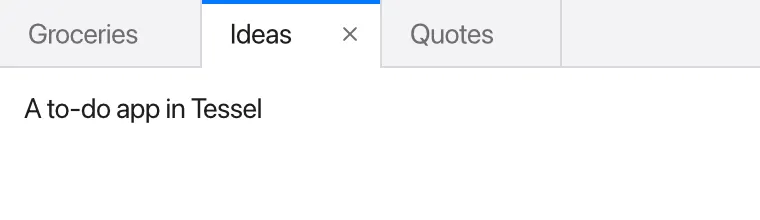
Pages, titles and tags
Section titled “Pages, titles and tags”Each view directly inside the TabView’s block is one page. Usually you write
them with a for loop, as above, but you can also list them one by one. Each
page gets two modifiers:
.tabItem("Title")sets the text on its tab. A page without one is titled “Untitled”..tag(value)gives the page a value that identifies it.
selection: is bound to the tag of the page being shown. Clicking a tab sets
selection to that page’s tag, and setting selection in your code switches
tabs; for example, current = "Quotes" brings the Quotes page to the front.
The tags can be of any type, as long as they all match the type of the selection. Strings and enums are the most common:
enum Panel { problems, console }
app Output(width: 400, height: 240) {    state panel = Panel.problems    state problems: [String] = []    state console: [String] = ["Build finished"]
    TabView(selection: panel) {        Text("{problems.count} problems")            .tabItem("Problems")            .tag(Panel.problems)        Text(console.joined(separator: "\n"))            .tabItem("Console")            .tag(Panel.console)    }}
If selection doesn’t match any page’s tag, the first page is shown.
Only the selected page is shown, but the other pages still exist: any state inside them is kept while you look at another tab, and comes back when you switch back.
Closing tabs
Section titled “Closing tabs”Give TabView an onClose: function to show close buttons on the tabs. The
close button appears on the selected tab, and on any tab under the mouse
pointer. Clicking it calls onClose with that page’s tag.
onClose doesn’t remove anything by itself: your function decides what
closing means. Usually it removes the item from the list the pages are made
from, and, if the closed tab was the selected one, picks another tab to show,
as close(name:) does above. Because it’s your code, it can also do other
things first, like saving the file that was open in the tab.
The function takes one parameter, of the same type as the tags:
onClose: { name in close(name: name) } receives a String here because the
tags are strings.
A TabView takes all the space it’s offered, in both directions, and gives
its page everything below the tab bar. To make a TabView a fixed height, for
example a panel at the bottom of a window, use .frame(height:):
TabView(selection: panel) { Text("Problems").tabItem("Problems").tag(Panel.problems) Text("Console").tabItem("Console").tag(Panel.console)}.frame(height: 220)Each tab is at least 90 points wide.
In a real app
Section titled “In a real app”The Tessel IDE (in the repository’s ide/ folder) uses two
TabViews: one for the open files, where each page is a
CodeEditor tagged with its file path, and one at the
bottom for its Problems and Console panels, tagged with an enum.