
3D scenes
A Canvas draws flat shapes. A Scene3D shows solid ones:
you say what’s in the scene and where it’s seen from, and the graphics card
draws it, with nearer things in front of farther ones, lit and shaded.
A first scene
Section titled “A first scene”A Scene3D is a view with a block. The block gets a Scene value, usually
called s, and says what’s in the scene by calling its methods:
app Shapes(title: "Shapes", width: 420, height: 300) { Scene3D { s in s.camera(x: 4, y: 3.5, z: 6) s.plane(width: 5, depth: 5, color: .rgb(225, 228, 235)) s.box(color: .red, x: -1.5, y: 0.5) s.sphere(radius: 0.6, color: .blue, y: 0.6) s.cylinder(radius: 0.4, height: 1.2, color: .green, x: 1.5, y: 0.6) s.cone(radius: 0.5, height: 1, color: .orange, y: 0.5, z: -1.6) }}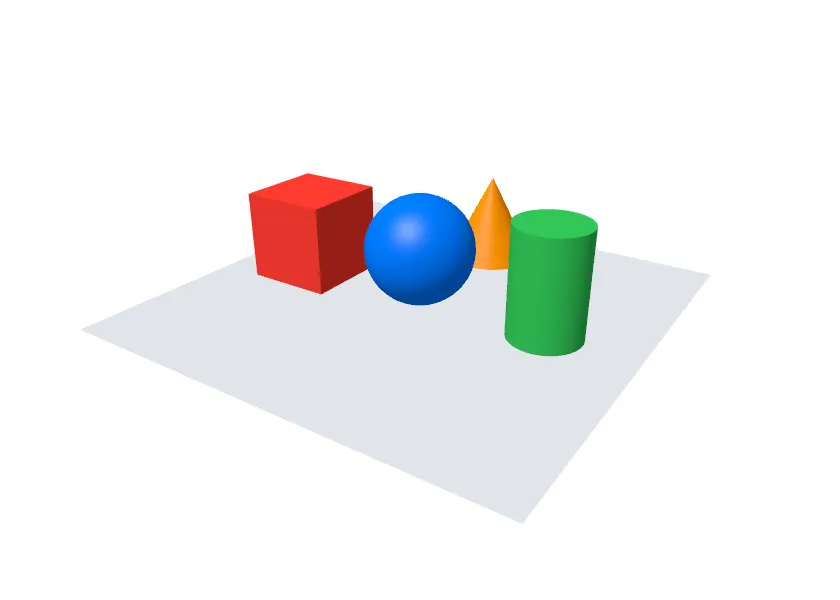
- Places and sizes are in the scene’s own units: what a unit is (a meter, a
millimeter) is up to you.
xgoes to the right,yup, andztowards you. - A shape’s
x:,y:andz:say where its middle is, and are 0 when left out. The box above is 1 high, so withy: 0.5it stands on the sheet. - Like a canvas, a scene takes all the space it’s offered;
.framegives it a size. It has no background of its own: what’s under the view shows around the shapes, so.background(…)works, and so doess.background(…). - The block runs when the window is drawn, so it reads
statelike any view, and the scene follows it. It shouldn’t changestate.
Shapes
Section titled “Shapes”| Method | |
|---|---|
s.box(width:, height:, depth:, color:) | A box. Each size is 1 when left out. |
s.sphere(radius:, color:) | A ball. |
s.cylinder(radius:, height:, color:) | A cylinder, standing up. |
s.cone(radius:, height:, color:) | A cone, its point up. |
s.plane(width:, depth:, color:) | A flat sheet, lying down. |
s.line(x1, y1, z1, x2, y2, z2, color:) | A thin line between two points. |
s.lines(points, color:, closed:) | A line through many points, given as x, y, z, x, y, z, …. |
s.label(text, x:, y:, z:, size:, color:) | Text at a point of the scene. It faces you and keeps its size wherever the camera is, and shows over the shapes. |
Each shape also takes x:, y: and z:, and opacity: (see
Seeing through shapes). See
Scene for every parameter and its default.
The camera
Section titled “The camera”Without a camera, a scene is seen from (3, 2.5, 4), looking at the middle.
s.camera puts it somewhere else, and says what it looks at:
s.camera(x: 0, y: 10, z: 0.1) // from aboves.camera(x: 4, y: 1.5, z: 0, lookAtY: 1.5) // from the right, level with y = 1.5For looking around something, s.orbit is easier: the camera is at a
distance from a point, turned yaw around it and raised pitch above
it (both angles in radians, like every angle in Tessel). With the angles in
state, the mouse can move it:
app Look(title: "Look around", width: 420, height: 300) {    state yaw = 0.6    state pitch = 0.4    state distance = 7.0
    Scene3D { s in        s.orbit(distance: distance, yaw: yaw, pitch: pitch)        s.box(color: .purple)        s.line(0, 0, 0, 2, 0, 0, color: .red)        s.line(0, 0, 0, 0, 2, 0, color: .green)        s.line(0, 0, 0, 0, 0, 2, color: .blue)        s.label("x", x: 2.2, color: .red)        s.label("y", y: 2.2, color: .green)        s.label("z", z: 2.2, color: .blue)    }    .onPointer { e in        if e.kind == .drag {            yaw -= e.dx * 0.01            pitch += e.dy * 0.01        }        if e.kind == .scroll {            distance = (distance - e.dy * 0.05).clamped(min: 2, max: 30)        }    }}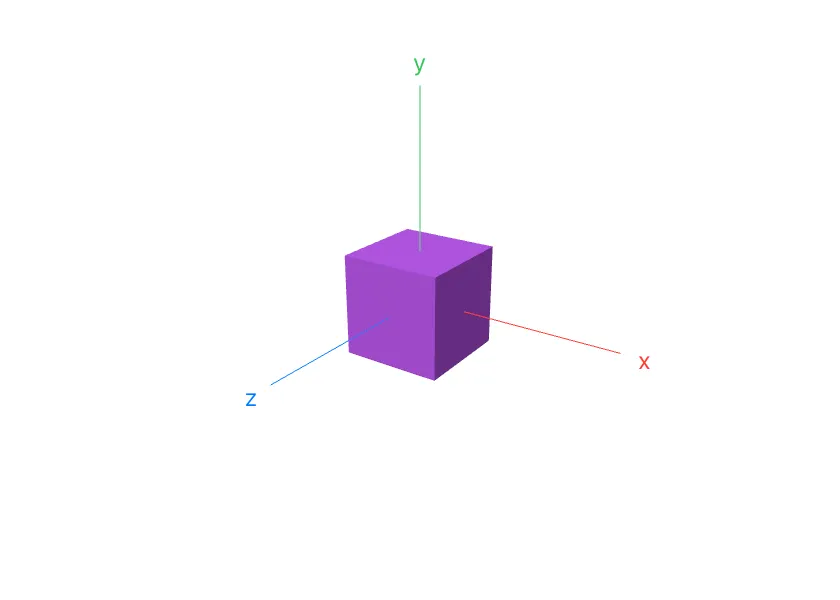
Things twice as far look half as large. fieldOfView: (on both methods) is
the angle seen from the top of the view to the bottom, 45 degrees unless
you say otherwise: smaller looks through a telescope, larger through a wide
lens.
Moving, turning and sizing
Section titled “Moving, turning and sizing”s.translate, s.rotateX, s.rotateY, s.rotateZ and s.scale change
where everything after them goes, as a canvas’s do. s.save() remembers
that, and s.restore() goes back to it. A turn is around the axis it’s
named after, through the point everything has been moved to: move first,
then turn, and a part turns in its own place.
app Arm(title: "Arm", width: 420, height: 300) {    state bend = 0.7
    VStack {        Scene3D { s in            s.camera(x: 0.5, y: 2, z: 7, lookAtY: 1.2)            s.cylinder(radius: 0.6, height: 0.2, color: .gray, y: 0.1)
            s.translate(0, 0.2, 0)            s.box(width: 0.3, height: 1.5, depth: 0.3, color: .blue, y: 0.75)
            // The second part hangs from the end of the first, and turns there.            s.translate(0, 1.5, 0)            s.rotateZ(-bend)            s.sphere(radius: 0.22, color: .orange)            s.box(width: 0.25, height: 1.2, depth: 0.25, color: .blue, y: 0.6)        }        Slider(value: bend, from: 0, to: 2)            .padding(12)    }}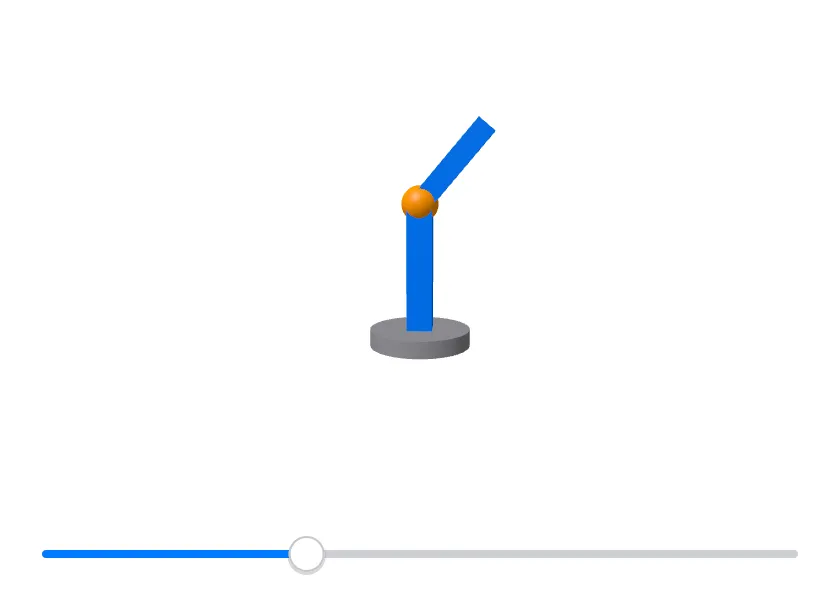
A scene with no light of its own is lit from over your left shoulder,
wherever the camera is. s.light adds a light instead: x:, y: and z:
are the direction it comes from. It’s as far as the sun, so every shape
is lit from the same side, and nothing casts a shadow. A scene can have up
to 4.
s.light(x: 2, y: 3, z: 4) // white, from the upper right in fronts.light(x: -3, y: 1, z: -2, color: .rgb(255, 200, 150), strength: 0.5) // a weaker, warm one from behinds.ambient(0.15)s.ambient(amount) is the light there is everywhere, which the sides
turned away from every light still get: 0.3 unless you say otherwise, from
0 (black shadows) to 1 (no shading at all).
Surfaces
Section titled “Surfaces”s.surface is a sheet over a grid, for a terrain or a function of two
numbers. heights holds the height at each point of the grid, row by row
from the back, and columns says how many there are in a row. With
colors:, each point is colored by its height, from the first color (the
lowest) to the last:
app Ripple(title: "Ripple", width: 420, height: 300) {    state heights: [Float] = []
    Scene3D(redraw: heights.count) { s in        s.camera(x: 3, y: 2.6, z: 4)        s.surface(heights: heights, columns: 60, width: 4, depth: 4, colors: [.blue, .green, .yellow, .red])    }    .onAppear {        for j in 0..60 {            for i in 0..60 {                let x = Float(i) / 59 * 12 - 6                let z = Float(j) / 59 * 12 - 6                let d = sqrt(x * x + z * z)                heights.append(cos(d * 1.5) * 0.4 / (1 + d * 0.3))            }        }    }}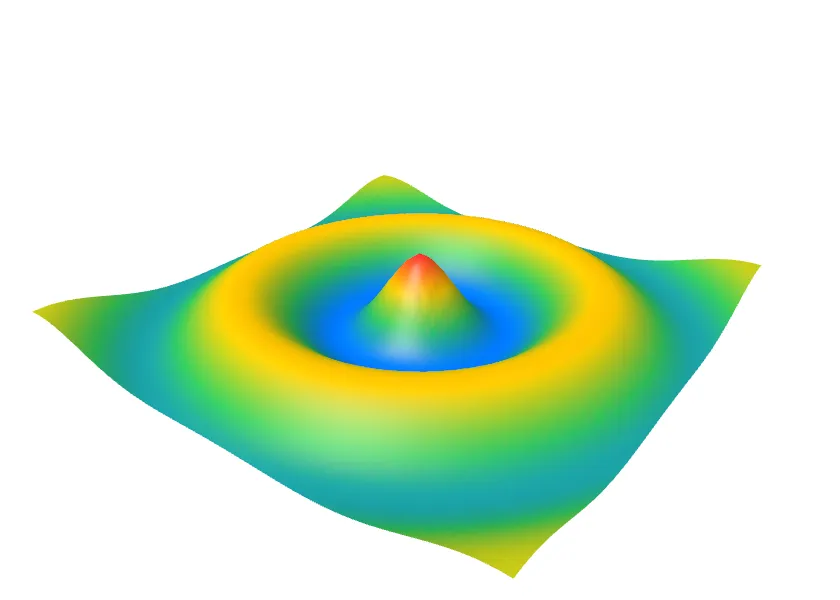
The heights here never change, so redraw: keeps the picture: see
When a scene is drawn.
Shapes of your own
Section titled “Shapes of your own”s.mesh takes triangles. vertices is the points, x, y, z for each, and
triangles says which three points make each triangle, counting points
from 0:
app Pyramid(title: "Pyramid", width: 420, height: 300) { Scene3D { s in s.camera(x: 2.5, y: 2, z: 3.5, lookAtY: 0.5) s.light(x: 2, y: 3, z: 4) s.light(x: -3, y: 1, z: -2, color: .rgb(255, 200, 150), strength: 0.5) s.ambient(0.15) s.background(.rgb(24, 26, 32)) s.mesh( vertices: [ -1, 0, 1, 1, 0, 1, 1, 0, -1, -1, 0, -1, // the base's corners 0, 1.5, 0, // the top ], triangles: [0, 1, 4, 1, 2, 4, 2, 3, 4, 3, 0, 4, 0, 2, 1, 0, 3, 2], color: .yellow ) }}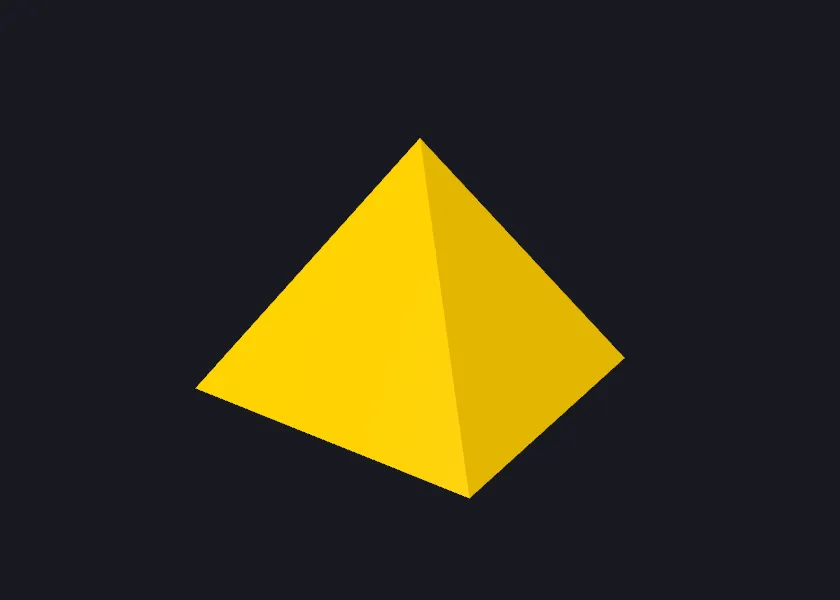
- Without
triangles:, every three points are a triangle. colors:gives each point a color of its own, in the order of the points, and each triangle goes smoothly from one of its points’ colors to the others’: that’s how a value known at every point (a temperature, a pressure) is shown. A point without a color takescolor:.- Both sides of a triangle show, so the order of its points doesn’t matter.
- Each triangle is flat, with a sharp edge to the next.
smooth: trueshades across the edges between triangles that share points, for a curved thing made of many small triangles. - A triangle that names a point that isn’t there leaves the whole mesh out.
Seeing through shapes
Section titled “Seeing through shapes”opacity: makes a shape see-through: 1 (the default) hides what’s behind
it, 0.5 lets half of it show, and 0 shows nothing of the shape. A color
that’s see-through itself, like .rgba(0, 120, 255, 0.4), does the same.
app Dam(title: "Dam", width: 420, height: 300) {    Scene3D { s in        s.camera(x: 5, y: 3, z: 7, lookAtY: 0.8)
        // The core, and the water behind the dam.        s.box(width: 0.6, height: 1.8, depth: 4, color: .orange, y: 0.9)        s.box(width: 3, height: 1.5, depth: 4, color: .blue, x: -3, y: 0.75, opacity: 0.35)
        // The shell: a section drawn along the dam, see-through, and        // colored from wet at the bottom to dry at the top.        let wet: Color = .rgb(60, 110, 200)        let dry: Color = .rgb(190, 160, 110)        s.mesh(            vertices: [                -3, 0, 2,    3, 0, 2,    0.5, 2, 2,    -0.5, 2, 2,                -3, 0, -2,   3, 0, -2,   0.5, 2, -2,   -0.5, 2, -2,            ],            triangles: [                0, 1, 2,  0, 2, 3,    4, 6, 5,  4, 7, 6,    // the ends                0, 3, 7,  0, 7, 4,    1, 5, 6,  1, 6, 2,    // the slopes                3, 2, 6,  3, 6, 7,                          // the top            ],            colors: [wet, wet, dry, dry, wet, wet, dry, dry],            opacity: 0.45        )    }}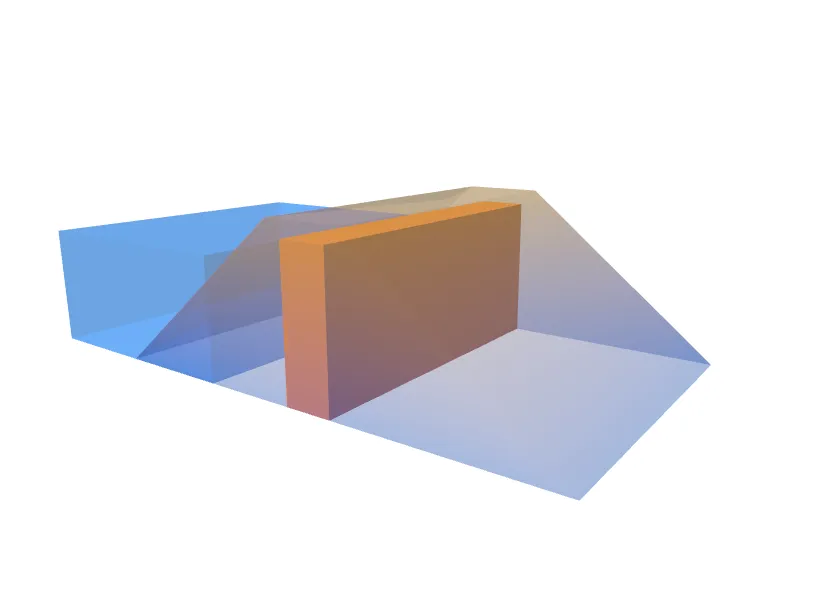
See-through shapes are drawn after the solid ones, the farthest triangle first. Where two of them pass through each other, the one that’s drawn in front can be the wrong one; shapes that are beside or inside each other are fine.
When a scene is drawn
Section titled “When a scene is drawn”Without redraw:, the block runs each time the window is drawn, and the
picture is made again only when what the block said has changed. That’s
right for most scenes.
When the block itself is slow (it builds a large mesh, say), give the scene
redraw: a number: the block then runs again only when the number is
different from last time, when the view’s size changes, or when the
appearance switches between light and dark.
Scene3D(redraw: version) { s in … }A scene is drawn by the graphics card into a picture, which the window then shows. Tens of thousands of triangles are fine; a scene that moves all the time costs more as the view gets larger.
What a scene doesn’t do
Section titled “What a scene doesn’t do”- Shadows, textures (pictures on shapes), and loading models from files.
- Telling which shape the mouse is on.
.onPointersays where the mouse is in the view; working out what’s under it is up to the program. - Thicker lines: a line is always one pixel wide.
- On a computer with no graphics card to use, a scene shows as an empty box.
Testing
Section titled “Testing”In a headless run, tree shows what’s in a scene without
drawing it: Scene3D (4 shapes, 1668 triangles, 3 lines, 3 labels).
snapshot draws it.