
Tables and trees
A Table shows rows of your data in columns, under a header. A Tree
shows data that’s nested (folders in folders, a document’s outline) a
level at a time, opened with an arrow. Both build only the rows that show,
so they stay quick with a hundred thousand rows.
A table
Section titled “A table”The block after Table gives its columns. Each TableColumn has a title
and a block that builds its cell in row i:
struct Person {    name: String    role: String    age: Int}
app Team(title: "Team", width: 460, height: 260) {    state people = [        Person(name: "Ada", role: "Engineer", age: 36),        Person(name: "Grace", role: "Admiral", age: 85),        Person(name: "Linus", role: "Maintainer", age: 54),        Person(name: "Alan", role: "Mathematician", age: 41),        Person(name: "Margaret", role: "Director", age: 33),    ]    // The rows in the order they show: sorting changes this, not `people`.    state order = [0, 1, 2, 3, 4]    state picked: [Int] = []    state column = 0    state up = true
    Table(rows: order.count, selection: picked, sortColumn: column, ascending: up, onSort: { sort() }) {        TableColumn("Name", width: 140) { i in Text(people[order[i]].name) }        TableColumn("Role") { i in Text(people[order[i]].role).color(.secondary) }        TableColumn("Age", width: 60, alignment: .trailing) { i in Text("{people[order[i]].age}") }    }    .padding(12)
    fn sort() {        order = order.sorted { a, b in            let (x, y) = if up { (people[a], people[b]) } else { (people[b], people[a]) }            match column {                1 -> x.role < y.role                2 -> x.age < y.age                _ -> x.name < y.name            }        }        picked = []    }}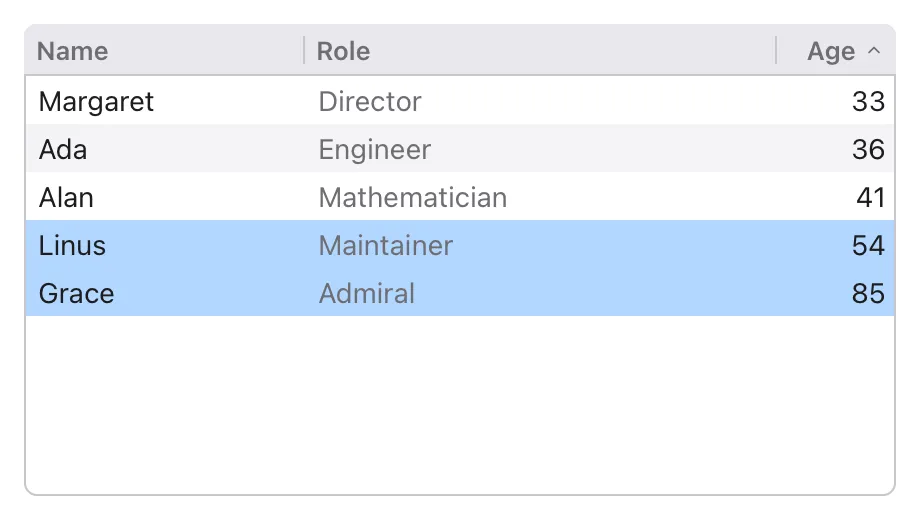
- Your data stays yours.
rows:says how many rows there are; a cell’s block reads whatever rowistands for. Hereorderholds the rows in the order they show, so sorting moves numbers in a list and not the people. - Widths. A column with
width:is that wide; the columns without one share what’s left. The user can drag the edge between two titles to make a column wider or narrower. - Alignment.
alignment: .trailinglines the column’s cells (and its title) up on the right, as numbers usually are;.centerin the middle. - Each cell can hold any views: an icon and a text in an
HStack, aToggle, aTextFieldbound to the data so it can be edited there. Make the rows taller for controls:rowHeight: 32. - A table is as large as it’s allowed to be (give it a
.frameto size it), and scrolls when its rows don’t fit.
Sorting
Section titled “Sorting”Clicking a column’s title sorts by it; clicking it again, the other way.
The table doesn’t sort your data itself: it sets sortColumn: (the
column’s number, from 0) and ascending:, shows an arrow by that title,
and runs onSort:, where you put the rows in that order. Leave
sortColumn: out and the titles can’t be clicked.
The rows selected are numbers of rows as they show: once the order
changes they mean other people, so sort() above clears the selection.
Selecting
Section titled “Selecting”selection: holds the numbers of the rows selected, in order:
| Click | Selects only that row. |
| Shift-click | Selects the rows from the one selecting started at to this one. |
| Cmd-click (Ctrl on Windows) | Adds the row, or takes it out. |
| Up and down arrows | Move the selection (with Shift: select more). Home, End, Page Up and Page Down too. |
| Double-click, or Enter | Runs onOpen: with the row’s number. |
multiple: false keeps it to one row. A table without selection: can’t
be selected.
Editing cells
Section titled “Editing cells”A column with onEdit: has cells that can be edited where they are, as in
a spreadsheet. Double-click a cell and a text field takes its place, with
its text selected to type over:
struct Item {    name: String    count: Int}
app Stock(width: 400, height: 240) {    state items = [Item(name: "Bolts", count: 120), Item(name: "Nuts", count: 80)]    state selected: [Int] = []
Table(rows: items.count, selection: selected) { TableColumn("Item", onEdit: { i, text in items[i].name = text }) { i in Text(items[i].name) } TableColumn("Count", width: 80, alignment: .trailing, onEdit: { i, text in if let n = parseInt(text).value() { items[i].count = n } }) { i in Text("{items[i].count}") } }}onEdit:gets the row and what was typed, and puts it in your data; it can refuse it, as the count above does with what isn’t a number.- Enter, or a click somewhere else, keeps what’s typed. Escape drops it.
- Tab keeps it and goes on to the next cell that’s edited (Shift+Tab, the one before), on to the next row.
- With the keyboard on the table, Enter edits the row’s first cell that’s
edited, when the table has no
onOpen:. - The field starts with the cell’s text: its first
Text’s.
A tree
Section titled “A tree”A Tree asks your data what’s in it: children: is given a node’s
path (where it is: [0] is the first node at the top, [0, 1] its
second child, [] the top itself) and says how many children it has. The
block after it builds the row of the node at a path:
struct Item {    name: String    children: [Item] = []}
fn itemAt(_ items: [Item], _ path: [Int]) -> Item {    var level = items    var found = Item(name: "")    for i in path {        found = level[i]        level = found.children    }    found}
app Files(title: "Files", width: 320, height: 260) {    state files = [        Item(name: "src", children: [Item(name: "main.tsl"), Item(name: "ui", children: [Item(name: "list.tsl"), Item(name: "detail.tsl")])]),        Item(name: "tests", children: [Item(name: "main.script")]),        Item(name: "README.md"),    ]    state chosen: [Int] = []
    VStack(alignment: .leading) {        Tree(children: { path in if path.isEmpty { files.count } else { itemAt(files, path).children.count } }, selection: chosen) { path in            HStack(spacing: 6) {                Icon(if itemAt(files, path).children.isEmpty { IconName.file } else { IconName.folder })                Text(itemAt(files, path).name)            }        }        Text(if chosen.isEmpty { "Nothing chosen" } else { "Chosen: {itemAt(files, chosen).name}" })    }    .padding(12)}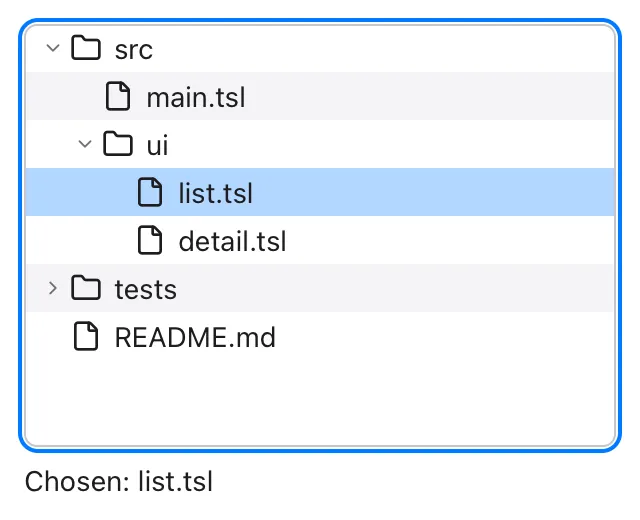
- Each level is indented, and a node with children has an arrow: click it, or press the right arrow key to open the node and the left one to close it (or to go to its parent).
selection:holds the selected node’s path ([]for none), andonOpen:is given it on a double-click or Enter.- The tree remembers which nodes are open while it’s shown.
In tests
Section titled “In tests”In a headless run, tree shows a table’s columns and what
it’s sorted by and what’s selected, and each row built:
Table ["Name", "Age"] 100000 rows, sorted by "Age" up, selected [3].
click "Name" clicks a column’s title; click shift "Alan" and
click cmd "Alan" click with the key held.